
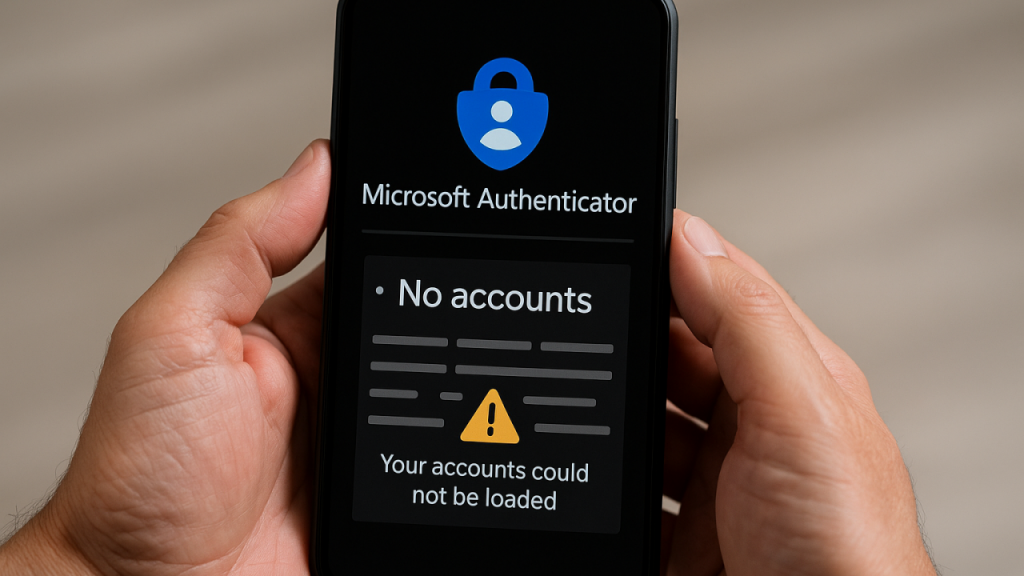
I finally caved and went big. REALLY big. At 51, squinting at a small phone screen isn’t cutting it anymore. Enter the iPhone 16 Plus, a not quite pocket-sized flatscreen TV that finally lets me read without holding the phone at arm’s length like my dad used to with the Sunday paper.
I consider myself pretty tech savvy. Migration should have been quick and painless as always. Apple calls it Quick Start for a reason.
Except for some “Subject Matter Expert” in Redmond.
Some highly compensated Microsoft product manager decided to “improve” the Authenticator app’s backups in early September 2025 – by moving them from a straightforward iCloud backup to iOS Keychain – without really telling anyone. Keychain is Apple’s passwords and credentials management app and comes with its own little, self-directed iCloud backup/restore feature, independent from general iCloud device backup and restore.
As an Information and Cybersecurity guy, I am pretty tough on myself to use app-based Multi-Factor Authentication (MFA or 2FA) for any account that offers it. Passwords alone aren’t secure enough, and using cell phone or email relayed PINs or “One Time Passwords” isn’t that much safer either. Authenticator apps on the other hand offer a significant increase in security.
The result? A shiny new phone with nice big letters for my sore eyes… and no access to the MFA accounts stored inside Microsoft’s Authenticator. MFA didn’t just protect me from hackers, it protected myself from going online pretty much at all. Unlike in prior releases, the Authenticator app’s settings no longer offer a feature to restore from iCloud backup.
Worse, if you had Keychain backup turned off, those MFA accounts in the Authenticator app were now only stored locally on your old phone, as Microsoft literally shut down their own iCloud backup feature of the Authenticator app’s data without mentioning it to anyone.
Oh, and if you were an Android user and smirked at this story so far, be told that Microsoft caused the exact same issue for Google Backup. Welcome to the show.
Why this is shocking (or not)
- Vendors owe us stability – but too often, they fail to offer it. We’ve all seen this before, so best not to put all eggs in one basket and have a fallback solution for critical accounts. Sad truth: we need to expect vendors to stink at this at one point or another.
- Unplanned, unannounced, and poorly rolled out changes break trust. When a feature swap isn’t communicated, it’s the users who are the guinea pigs and usually during the worst time possible. If I had wiped or lost my old phone before I found out…
- Imagine this at scale. One phone upgrade is a headache. Fifty at once? Or you find out after you just reinstalled a critical server environment millions of uses are waiting for to come back online? A catastrophe.
How did I get out of the thicket?
After some choice words were sent mentally across the continental USA to the Northwestern shores, I searched around and found some Reddit articles covering the issue. Here is how to fix this conundrum:
- Update the Microsoft Authenticator app on your old phone. This is critical as it ensures the user credential data is in fact being stored in Keychain.
- Go into your “old” iPhone or iPad and turn on iCloud backup of “Passwords and Keychain”: Settings → Apple Account (your profile pic and account name first in the list of options) → iCloud → Saved to Cloud: See all → Passwords and Keychain → Sync this phone. This pushes the Authenticator data into the iCloud backup of Keychain data.
- Wait a bit and get some chocolate, cold beverage, vape, or whatever calms your anger with big tech.
- Install the Microsoft Authenticator app on your new device from the app store. Make sure it’s the newest version.
Voilà, your app should now pull in the various authorized MFA accounts from the Keychain backup in iCloud.
Caveat: Because we didn’t have enough joy already, Microsoft now no longer migrates the saved access tokens from the backup. So, you will need to reauthorize every Microsoft MFA account after restoring/migrating by entering its password and authorizing an MFA challenge through your original phone or another authorized MFA device.
Takeaway
Your MFA app should never feel like Russian roulette. Double-check your backups before switching devices, because the vendors clearly won’t save you the trouble. Don’t discard your old device or wipe it until your new device is fully validated.
Use more than one MFA app. I for one will retire Microsoft Authenticator for all non-Microsoft accounts after this adventure (only Microsoft Authenticator contains the “One Click” style push approvals for Microsoft accounts, so I will keep those in Authenticator). It’s safer to spread my MFA accounts over more than one MFA app anyway.
Make sure to store MFA recovery codes for all MFA accounts. Ideally you are already using a Password and Credentials Manager app of sorts anyway, easy and quick to store MFA recovery codes for each account in addition to its username and password.
Authenticate more than one device for MFA if the account allows it, for example your phone and tablet.
Sometimes, the breach isn’t a hacker. It’s Microsoft changing the locks — and forgetting to leave you the keys. I am glad my old device was still alive and kicking to get me out of this bind. Make sure you have your way out in place as well.
#TISAX #ISMS #InfoSec #InformationSecurity #CyberSecurity #ISO27001 #RiskManagement #Automotive #GSInfoSec